(In English below)
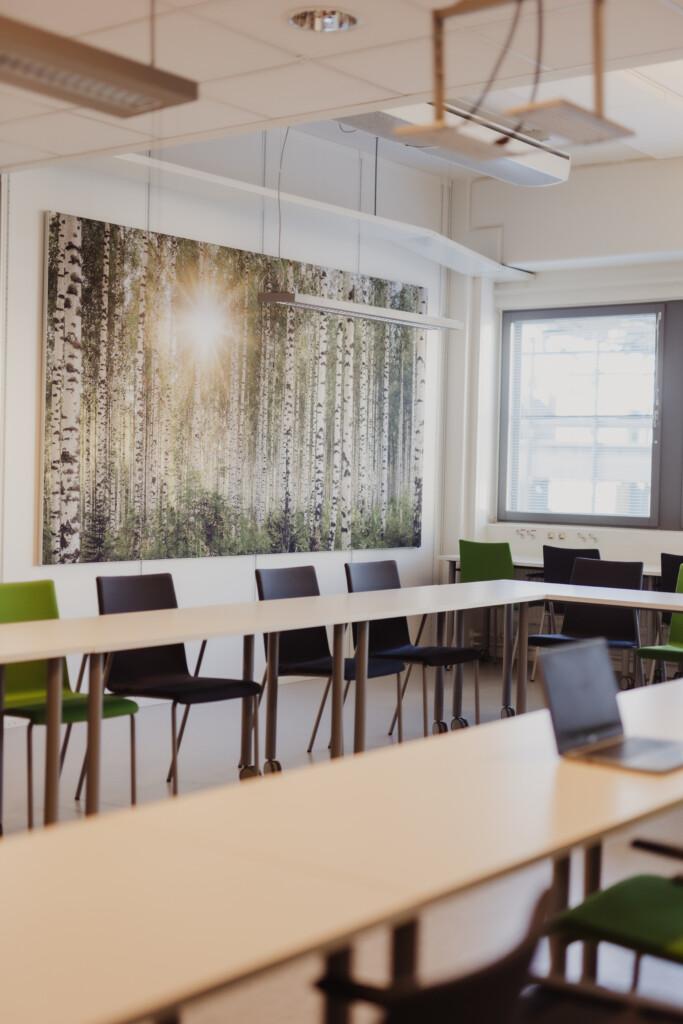
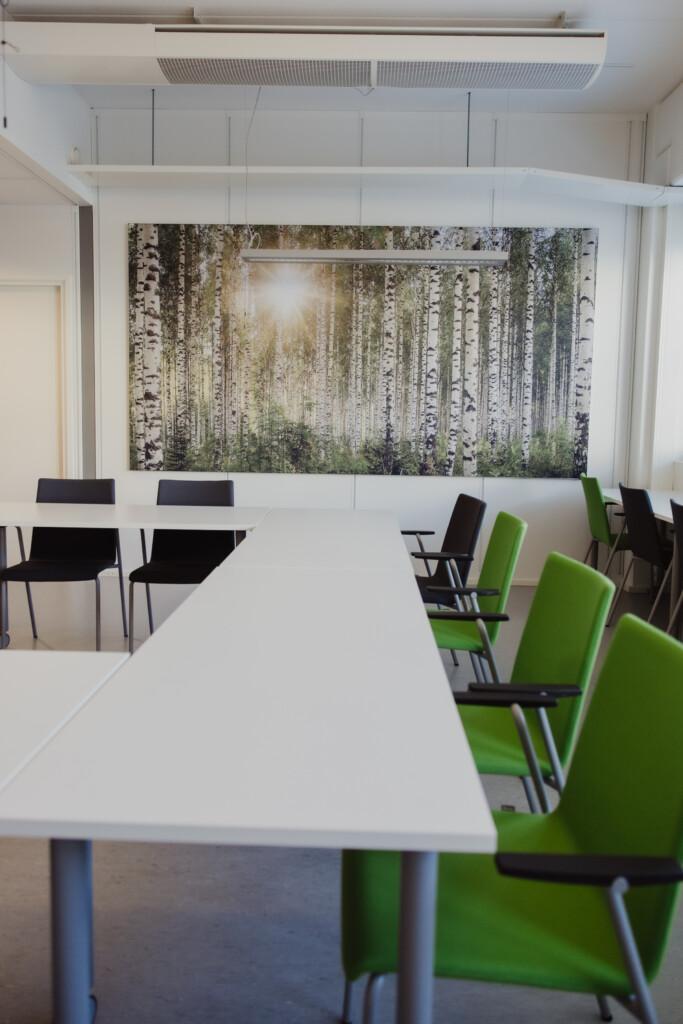
Seinäjoen yliopistokeskuksella on muutamia verkostomme yhteiskäyttöisiä tiloja. Timo-luokka on tarkoitettu kokouskäyttöön sekä opetuskäyttöön ja tilaa saa varata UCS verkostomme henkilökunta. UCS student hubin tilat ovat puolestaan tarkoitettu ensisijaisesti Seinäjoen kampuksen yliopisto-opiskelijoiden ja tutkijahotellilaisten käyttöön. Timo-luokassa on käytössä Teams Rooms- järjestelmä.
Miten varaan Timo-luokan?
Toistaiseksi Timo-luokassa toimiaksesi sinun täytyy varata TILA ja Teams Room LAITE erikseen. Tuplabuukkauksissa tilavaraus on aina voimallisempi kuin laitteen varaus.
- Voit tarkastaa Timo-luokan saatavuuden: TIMO-luokan varauskalenteri – Seinäjoen Yliopistokeskus UCS Voit klikata varauksia, jolloin näet myös tilaisuuksien päättymisajankohdan.
- Varaa TILA Bookingsin kautta. Valitse ensin palvelu (montako tuntia), sen jälkeen päivämäärä (päivämäärä). Näet sen jälkeen, moneltako pääsisit aloittamaan tilaisuuden valitsemallasi kestolla ja päivällä. Bookings näyttää sinulle vain sen, mitä on vapaana. Bookings – – Outlook
- Kutsu Timo-luokan LAITTEISTO mukaan kokoukseen kalenterikutsun kautta. Timo-luokan laitteiston osoite on: TRtimo-luokka.seinajoki@tuni.onmicrosoft.com. Kutsumisen olisi hyvä tapahtua samalla kalenterikutsulla, jonka lähetät muillekin tilaisuuteen osallistuville. Näin TRTimo-laite on siellä yhtenä osallistuja osallistujien seassa. Tämän 3. vaiheen johdosta, Timon Teams Rooms-laitteen ohjauspaneelin päiväkohtaiseen lukujärjestykseen ilmestyy sinun tilaisuutesi. Voit tilaisuuden koittaessa liittää laitteen kokoukseen suorana laitteen lukujärjestyksestä nappia painamalla.
- Saat TR Timo laitteelta sähköpostin (acceptance tai declined). Acceptance: kalenterimerkintä on onnistuneesti laitteen kalenterissa. Declined: laitteen varaus kalenterissa on päällekkäisyys.
Mikä on helpoin tapa aloittaa kokous Teams Rooms Timo laitteella? Jos kaikki on mennyt hyvin, sinun kokouksesi näkyy luokan Teams Rooms laitteen ohjauspaneelissa. Paneelista nappia painamalla saat laitteen sisään kokoukseen.
Onko oma kone liitettävä luokan kiinteään laitteistoon? Sinun ei ole pakko yhdistää omaa tietokonetta laitteistoon HDMI-kaapelilla. Mutta sun on pakko herättää laite ja liittää laite kokoukseen. Jos presentoit kokouksessa ja/tai opetat, niin liitä kone kiinni luokan laitteeseen.
Unohditko kutsua Timon laitteen kokoukseen? Ei haittaa. Voit näpytellä Teams kokouksen ID:n ja passwordin Timon ohjauspaneeliin ja yhdistää näin laitteiston kokoukseesi. ID:n ja passwordin löydät sinun tai kollegan tekemän Teams kokouksen tiedoista.
Entä jos varaan tilan jonkin toisen ihmisen (esim. opettajan) puolesta? Jos sinä varaat vain Timo-luokan tilaresurssin niin ideaalitilanteessa varauksen käyttäjä (esim. opettaja) varaa laitteiston kohdan kolme mukaan. Näin varauksen käyttäjä saa poimittua Timon TR laitteiston mukaan tilaisuudessa käytettävään kalenterikutsuun.
Miten tämä sammuu ja herää? Laite herää liikkeestä, anna sille muutama sekunti aikaa nousta. Laite menee nukkumaan automaattisesti. Laite ei nukahda kesken shown. Kun sun kokous loppuu, päätä kokous myös laitteen paneelista, muuta ei tarvitse tehdä.
Päivitykset, mikä muuttuu lähikuukausina? Nykyiset kamerat päivitetään, jolloin myös zoomaus mahdollistuu. Kameran kontrollikuvat tulevat esille ohjauspaneeliin. Laitteen softa päivittyy lähempänä joulua. Tämän jälkeen laitteistolla voi ajaa myös Zoomia. Nykyinen softa ei tue hyvää Zoom kokousta! Lisäksi vaihdetaan laitteiston HDMI-kaapeli USB-C kaapeliin. Näin saadaan myös tietokoneen lataus toimimaan yhdellä piuhalla. BYOD (bring your own device) – toiminto alkaa myös toimia äänen ja kuvan osalta.
Kuka voi varata Timo-luokan?
Timo-luokka on tarkoitettu vain yliopistokeskuksen toimijoiden käyttöön. Paikalla tulisi olla aina myös ”varaajaorganisaation” väkeä varmistamassa, että laitteita osataan käyttää ja pöyditys jää siistiksi seuraavaa varten. Yliopistokeskuksella ole töissä kokouspalveluhenkilökuntaa.
Miten muutan tai perun varauksen?
Bookings (tila-varaus ucs-timo) lähettää sinulle sähköpostiisi vahvistuksen varauksestasi, jonka kautta voit myös siirtää tai perua varauksesi. Jos vahvistusta ei kuulu, katso roskapostisi. Viesti tulee Timo-luokan resurssimeilistä. TR Timo-laitteen varauksen perut kalenterikutsusi kautta.
Entä muut UCS student hubin tilat?
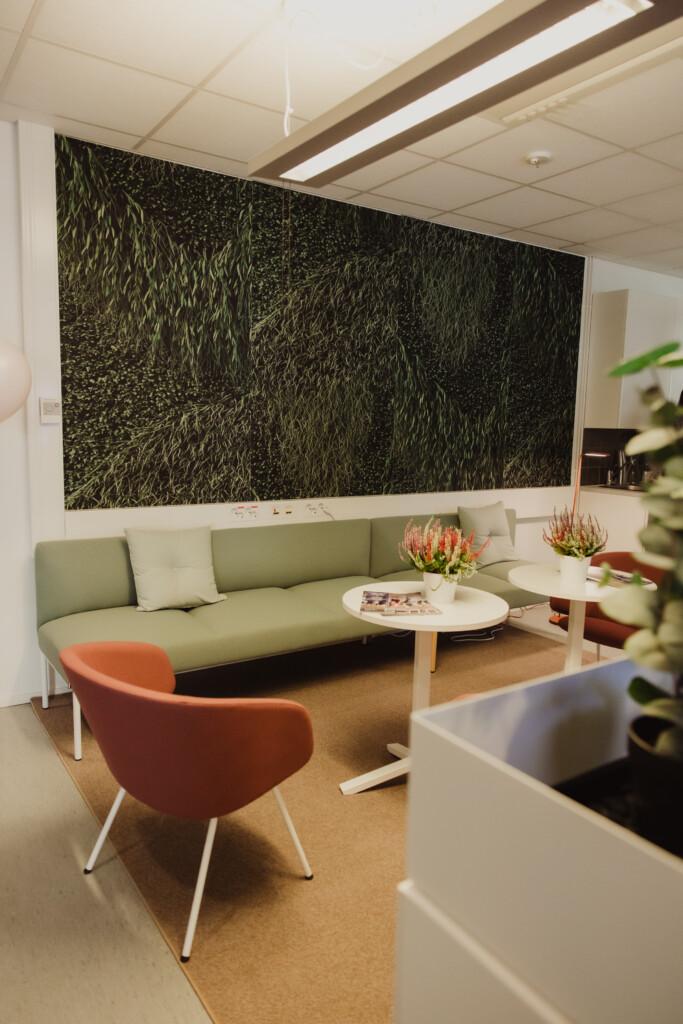
UCS student hubin muut tilat ovat ensisijaisesti opiskelijoiden käyttöön, mutta niitä voi satunnaisesti käyttää myös UCS verkoston henkilökunta ja tutkimusryhmät. Käytä aina työ/yliopiston sähköpostia hubin tilavarauksia tehdessä.
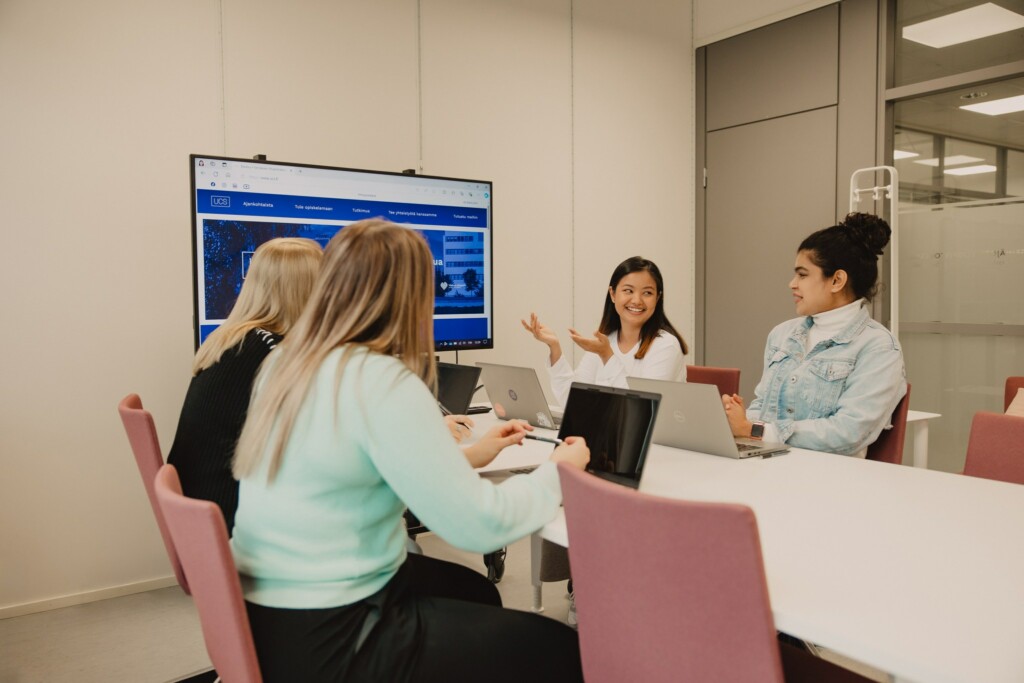
Varaa tästä Hubin kokoushuone. Tilassa on näyttö ja videobar. Tilaan mahtuu 6-8 ihmistä.
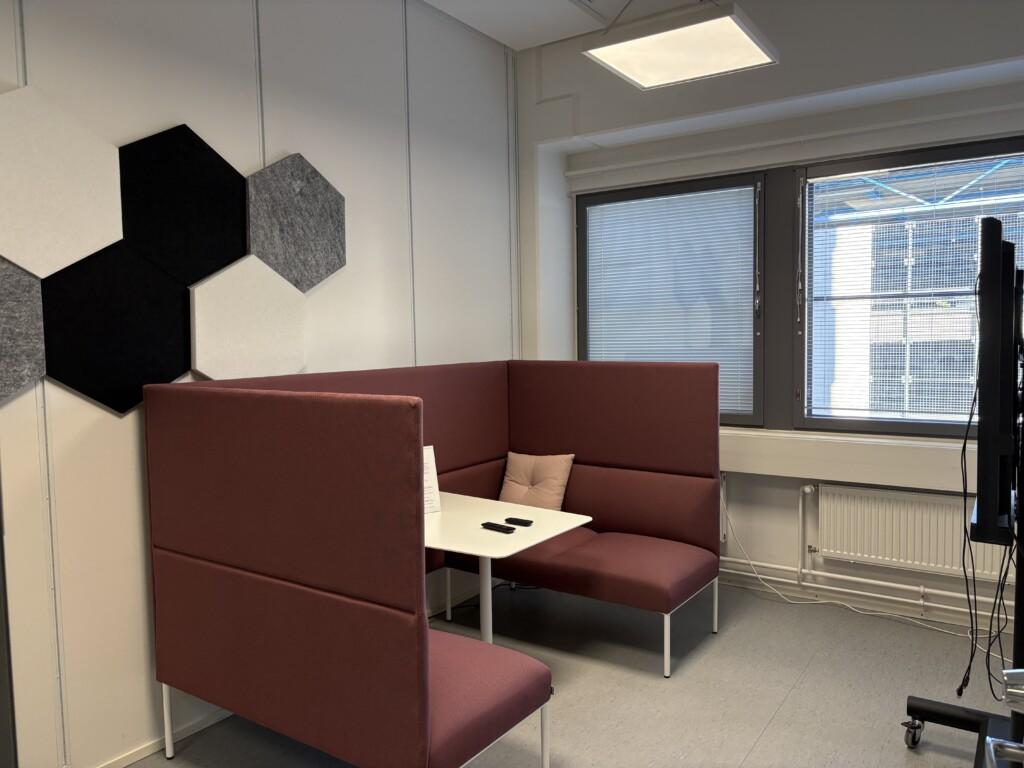
Varaa tästä Ryhmätyötila 2. Tilassa on näyttö ja videobar. Tila on hubin pienin tila ja sinne mahtuu 2-4 ihmistä.
The University Consortium of Seinäjoki has a few shared facilities of our network. The Timo classroom is intended for meeting and teaching use, and the space can be booked by the staff of our UCS network. The UCS student hub facilities are primarily intended for the use of university students and researcher hotel members on the Seinäjoki campus. The Timo classroom uses the Teams Rooms system.
How do I book the classroom Timo?
For the time being, to work in Timo class, you need to book a SPACE and a Teams Room DEVICE separately. In double bookings, a room reservation is always more powerful than a device reservation.
- You can check the availability of the TIMO class: TIMO-luokan varauskalenteri – Seinäjoen Yliopistokeskus UCS You can click on the reservations, and you will also see the end time of the events.
- Book a SPACE through Bookings. First, select the service (how many hours), then the date (date). You will then see what time you could start the event with the duration and day you have chosen. Bookings will only show you what is available. Bookings – – Outlook
- Invite the DEVICE of the Timo class to the meeting via the calendar invitation. The address of the equipment in the Timo class is: TRtimo-luokka.seinajoki@tuni.onmicrosoft.com. The invitation should be done with the same calendar invitation that you send to the other participants of the event. This way, the TRTimo device will be one of the participants among the participants. Due to this 3rd phase, your event will appear in the daily timetable of the control panel of the Timo Teams Rooms device. When the opportunity comes, you can connect the device to the meeting directly from the device’s timetable by pressing a button.
- You will receive an email (acceptance or declined) from the TR Timo device. Acceptance: the calendar entry is successfully in the device’s calendar. Declined: the device’s reservation in the calendar is an overlap.
FAQ
What is the easiest way to start a meeting on a Teams Rooms Timo device? If everything has gone well, your meeting will be shown in the control panel of the Teams Rooms device. By pressing a button on the panel, you can enter the device into the meeting.
Do I have to connect my own computer to the classroom’s built-in equipment? You don’t have to connect your own computer to the hardware with an HDMI cable. But you have to wake up the device and connect the device to the meeting. If you are presenting in a meeting and/or teaching, connect the computer to the classroom device.
Forgot to invite Timo’s device to the meeting? No problem. You can type in the Teams meeting ID and password in Timo’s control panel and connect the hardware to your meeting. You can find the ID and password in the Teams meeting information made by you or a colleague.
What if I book a room on behalf of another person (e.g. a teacher)? If you only book a room resource for a Timo class, then in an ideal situation, the user of the reservation (e.g. a teacher) will book the equipment according to step three. This way, the user of the reservation can pick up Timo’s TR equipment for the calendar invitation used at the event.
How does this turn off and wake up? The device wakes up from motion, give it a few seconds to get up. The device goes to sleep automatically. The device does not fall asleep in the middle of the show. When your meeting ends, end the meeting from the device panel as well, you don’t need to do anything else.
Updates, what will change in the next few months? The current cameras will be updated, which will also enable zooming. The control images of the camera will be displayed on the control panel. The software of the device will be updated closer to Christmas. After this, the hardware can also run Zoom. The current software does not support a good Zoom meeting! In addition, the HDMI cable of the hardware will be replaced with a USB-C cable. This will also make the computer charging work with one cable. The BYOD (bring your own device) function will also start working for audio and video.
Who can book a Timo class? The Timo class is only intended for the use of the University Consortium’s operators. People from the ”booking organization” should also always be present to ensure that the equipment is used and that the table remains clean for the next one. The University Consortium does not have conference service staff.
How do I change or cancel a reservation? Bookings (space reservation ucs-timo) will send you a confirmation of your reservation by email, through which you can also transfer or cancel your reservation. If you do not receive a confirmation, please check your spam folder. The message comes from the Timo class resource email. You can cancel the reservation of the TR Timo device through your calendar invitation.
How will I know if classroom Timo is vacant? Check the Timo-class online timetable.
Who has the right to use classroom Timo? The Timo class is only for UCS network use. Please make sure that there is always a member of your own organization looking after the participants, AV equipment and the set-up of the room.
What about the other UCS student hub rooms? The teamwork rooms are mainly for Seinäjoki Campus University students. However, they can be also used by the UCS network staff and research groups every now and then. Always use your university email, when booking the hub premises.
Book Group work room 2. The room has a screen and videobar. This is the smallest room; 1-4 person.
Book Hub meeting room. The room has a screen and videobar. Capacity: 6-8 people.
If you have any questions, please contact paivi.alaniska@tuni.fi